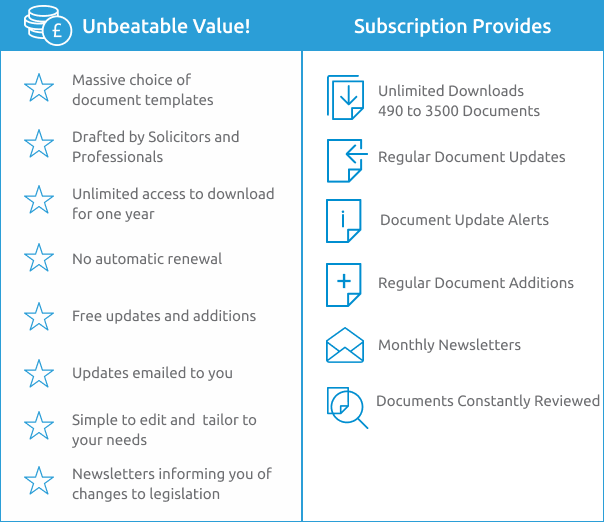
Please click on one of the following links to be taken to that section: Access Q: How does the service work? A: We are a subscription service, so you pay £35 plus VAT for one year’s access for one of the document folders, or £95 plus VAT for access to all document folders. Click here to see full details on the different price packages we offer. Q: How do I get instant access to documents? A: The quickest way to access documents immediately is by using our WorldPay secure online payment system. If you have already registered, please take the following steps: Log into your account by entering your email address and password by clicking the Login link on the top left hand side of the home page. Click on “Buy Subscription” in the top left-hand corner of your screen, under “Options” Click on the “Purchase” link next to the document folder you wish to purchase. If you have a promotion code, enter it in the appropriate box, then click “OK”. (The codes are case sensitive) Once you have read our terms and conditions and if you agree, tick the box beside this link and click “Continue” You will then be directed to the WorldPay site, where you need to enter your card details. Once your payment has been received, you will be sent an email confirming the transactions. You now have access to the document folder that you have subscribed to. If you haven’t registered, please take the following steps: Click on the button below the login button, titled ‘Register / Buy’, on the homepage. This will take you to the Register screen where you will be required to enter information needed in order to create an account. After you have filled all the boxes click ‘Register’ and it will take you through to the subscriptions page. There you will see the various packages we offer, including a free package to subscribe to if you would like an idea of the services we provide before you make a payment. If you would like to buy a subscription from this page click on the ‘buy’ button next to the subscription you desire. The next page gives you a brief breakdown of your personal account information and the VAT cost. If you have a promotion code, enter it in the appropriate box, then click ‘OK’. (The codes are case sensitive) Once you have read our terms and conditions and if you agree, tick the box beside this link and click ‘Continue’ You will be directed to the WorldPay site, where you need to enter your card details. Once your payment has been received, you will be sent an email confirming the transactions. You now have access to the document folder that you have subscribed to. (n.b. if you chose to buy the free subscription package, and you wish to purchase a full package, please follow the steps from section i. to gain instant access to the documents.) Q: Are there any alternative methods of payment? A: It is possible to pay by invoice, however please note that your subscription will be activated once we receive the payment. If you wish to make a payment either by a cheque or bank transfer, click on the Buy/Purchase button for the Folder you wish to subscribe to and continue with the checkout process as if you were making payment online. Once you’re on the Worldpay website, click on ‘cancel transaction’. Within a few minutes you will receive a confirmation email from our office saying the “payment cancelled” status has been noticed on your account and it has been converted to ‘free active’ status. At this stage log back in to simply-docs account, on the left had side under Options, you will see Pay By Invoice button. Click on that button and it will show a list of available purchase options. Select the folder you wish to subscribe to and follow the process which will look similar to normal checkout process, however at the end it will create a link in your My Account subscriptions list with status being ‘payment pending’ for the selected purchase. Click on Pay by invoice link under the Invoice options on right hand side of the screen, this will allow you to download PDF invoice with our bank details on it. Q: How do I access a VAT invoice for my subscription? A: Once you are logged in, download the PDF document from the ‘My Account’ section of the website by clicking on ‘VAT Invoice’, which appears alongside your subscription (e.g. Employment, under ‘Download Invoice’). Q: Why do I have to go through the payment process for each folder I wish to subscribe to? A: Since each folder is a separate subscription for 1 year period we process each purchase as a unique order. This allows us to provide our customers with specific information related to the particular folder whenever needed. Do not forget that if you wish to subscribe to 3 or more folders, it is a better idea for you to purchase ALL documents folder as it will save you some money; also it will save you hassle of making 3 or 4 separate payments. Downloading Q: How do I download documents once I have paid for my subscription? A: Please follow the following steps: Log into your account by clicking on ‘Login’ in the top left hand corner of the site, and entering your email address and the password that you have chosen. When you have found the document you wish to download, scroll down to the end of the document description. You will see a link saying “Download Document”. Click once on the “Download Document” link. Depending on your internet browser, the file will either start downloading automatically or you will be prompted to open or save it. We recommend prior to filing out/adapting the document that you save it to a location on your computer that you will remember. If you are experiencing problems with downloading, please contact us at: postmaster@simply-docs.co.uk Q: Why am I unable to download documents? A: There are several possible reasons as to why you are unable to download documents: If you have subscribed to one document folder and you have been trying to download documents from a different document folder, this would not work as you do not have a subscription to these folders. If you would like to access the documents in this folder, please go into the “My Account” section and under “My Subscriptions” / “Other Buy Options” click “Buy” on the folder that you would like to purchase. It could be that you are not logged in. Does your name appear on the top left hand side of the screen? If it does not, and “Welcome to Simplydocs” is there instead, you are not logged in. You will need to log in by taking the following steps: a) Clicking on the “Login” link underneath “Welcome to Simplydocs”. b) Entering the email address and password you chose when creating your account. c) You may have made a mistake when entering your email address and/or password. If you have entered your email or password incorrectly, a red asterisk will appear by that box. d) Alternatively you may need to delete the cookies from your browser. You will need to close the internet pages you have been looking at and delete the cookies: Cookies are the temporary settings stored by websites you have visited recently on to your computer. Occasionally if the cookie files gets corrupted, wrong settings are being stored on your computer and the website may not function the way it is supposed to be. For example, even after logging into the website, it still shows you as not logged in or it does not allow downloads. In order to sort out this problem follow the steps: Internet Explorer (IE): Close all the IE windows. Open IE and go to Tools at the top in the tool bar. If you do not see the Tools on top of your screen, press ALT key once and the toolbar should appear. Click on Internet Options. Under Browsing History panel, click on Delete Button. Make sure you tick the first options “preserve favourite website data”. Make sure you tick the “cookies” option. Selection of the rest is optional as per your personal preference. Click on Delete button. Please note it may take some time to delete cookies. Once finished, close IE. Open IE and retry the download from www.simply-docs.co.uk. Firefox: Close all the Firefox windows. Open Firefox, go to ‘Tools’ at the top in the tool bar. Click on ‘Clear Recent History...’. Under ‘Time range to clear’ select ‘Everything’ from the bottom of the drop box. Click on the button next to ‘Details’ to reveal the specific areas of the browser. Ensure that the cookies box is ticked, and then tick or untick any of the other boxes to your preference. After you’ve selected the relevent boxes you’d like to clear, click ‘Clear now’ (please note it may take a while for this to complete). Once the pop-up window has disappeared, close Firefox. Open Firefox retry the download from www.simply-docs.co.uk. Safari (version 5.1.2 or higher): Close all the Safari windows. Open Safari, click on the button displaying a drop-down box of settings. Click on the ‘Preferences’ option. In preferences, select the ‘Privacy’ tab. Under ‘Cookies and other website data’ there are two options: You can either select ‘Remove all website data’ to clear all of your cookies and website data. Or you can click on the ‘Details...’ button below it, where you can select individually which cookies and website data you wish to delete (however please note that you may not clear enough or clear the necessary cookies this way to download the simply-docs document, so if you have followed this step and the download still fails, please return to this step and clear more cookies and website data until the download works). A window will pop-up asking you “are you sure you want to remove all data stored by websites on your computer?” Select ‘Remove now’ (This may take a while). After pop-up window has disappeared, close the preferences window and close Safari. Open Safari and retry the download from www.simply-docs.co.uk. Google Chrome: Close all Chrome windows. Open Chrome and click on the button to the right of the address bar in the shape of a spanner. Place the cursor over the ‘tools’ option and another drop-box will appear. Click on the ‘Clear browsing data option’. A new tab will open and a window will appear titled ‘Clear Browsing Data’. Next to the sentence “Obliterate the following items from:” there is a drop-box. Select the option saying ‘the beginning of time’. Ensure that the box next to “Delete cookies and other site and plug-in data” is ticked. The other boxes may be ticked or un-ticked to your preference. Once you have selected the relevant boxes you want to be ticked, click on the button ‘Clear browsing data’ (this may take a while). Once the window has disappeared, close Chrome. Open Chrome and retry the download from www.simply-docs.co.uk. Use of Documents Q: Can I edit the document? A: Most of our documents are simple Microsoft Word documents and can be edited with ease. Certain documents use forms and/or macros and have consequently been locked. These documents can be easily unlocked by following the steps below: (Please note that the data entered into some forms may be lost when unlocking them so it is advisable to make modifications to the documents prior to entering data.) To unlock a document in Microsoft Office 2003 or older: If a padlock icon is visible on your toolbar, simply click it to unlock the document. If the padlock icon is not visible on your toolbar: Open the “View” menu. Open the “Toolbars” sub-menu and select “Forms”. The padlock icon should now be visible. Click on the icon to unlock the document. Click on the “Review” tab to reveal the “Protect Document” (Office 2007) or “Restrict Editing” (Office 2010) button. From the options, click on the “Stop Protection” button. After making the required modifications to your document, simply follow the same procedure to lock it again, thus rendering forms usable once more. In certain cases Microsoft Word may ask you whether you wish to enable or disable macros when opening our documents. In order to benefit from the full functionality of these documents, you must enable the macros. Simply-Docs guarantee that all macros in our documents are free from viruses. (n.b. If your word processing software was free software (such as ‘Microsoft Office 2010 Starter’ and ‘MS Works’) then you may be unable to locate the forms and document protection window, therefore being unable to unlock the document. In this instance, we recommend that you either purchase the word processing software for your own computer or find a computer that does have word processing software with the required functionality and download your documents from there.) Q: I can’t find the document I want. What shall I do? A: There are various ways to find documents: If you know which category the document you’re searching for falls into you can follow that route to locate your document (i.e. if your looking for residential tenancy agreements, you’d go to Business – Landlord and Property Agreements – Residential Property Letting – and a list of tenancy agreements are in this subfolder). If you know what you want but are not sure which folders and sub-folders you need to go to then type a keyword into the search bar on the top right hand side of the website (just below the logo). When you’re searching, try and enter one or two keywords (i.e. if you’re looking for a Consultancy Agreement, type ‘consultancy’ into the search bar) and the results will give you every document we have that is related to your search word. Clicking on one of the search results takes you straight to the document information page (the page with the download link). From that page you can see the path to that document and see which group and sub-folder it belongs to.
Please click on one of the following links to be taken to that section:
(n.b. if you chose to buy the free subscription package, and you wish to purchase a full package, please follow the steps from section i. to gain instant access to the documents.)
If you wish to make a payment either by a cheque or bank transfer, click on the Buy/Purchase button for the Folder you wish to subscribe to and continue with the checkout process as if you were making payment online. Once you’re on the Worldpay website, click on ‘cancel transaction’. Within a few minutes you will receive a confirmation email from our office saying the “payment cancelled” status has been noticed on your account and it has been converted to ‘free active’ status. At this stage log back in to simply-docs account, on the left had side under Options, you will see Pay By Invoice button. Click on that button and it will show a list of available purchase options. Select the folder you wish to subscribe to and follow the process which will look similar to normal checkout process, however at the end it will create a link in your My Account subscriptions list with status being ‘payment pending’ for the selected purchase. Click on Pay by invoice link under the Invoice options on right hand side of the screen, this will allow you to download PDF invoice with our bank details on it.
If you are experiencing problems with downloading, please contact us at: postmaster@simply-docs.co.uk
a) Clicking on the “Login” link underneath “Welcome to Simplydocs”.
b) Entering the email address and password you chose when creating your account.
c) You may have made a mistake when entering your email address and/or password. If you have entered your email or password incorrectly, a red asterisk will appear by that box.
d) Alternatively you may need to delete the cookies from your browser. You will need to close the internet pages you have been looking at and delete the cookies:
Cookies are the temporary settings stored by websites you have visited recently on to your computer. Occasionally if the cookie files gets corrupted, wrong settings are being stored on your computer and the website may not function the way it is supposed to be. For example, even after logging into the website, it still shows you as not logged in or it does not allow downloads.
In order to sort out this problem follow the steps:
(Please note that the data entered into some forms may be lost when unlocking them so it is advisable to make modifications to the documents prior to entering data.)
To unlock a document in Microsoft Office 2003 or older:
After making the required modifications to your document, simply follow the same procedure to lock it again, thus rendering forms usable once more.
In certain cases Microsoft Word may ask you whether you wish to enable or disable macros when opening our documents. In order to benefit from the full functionality of these documents, you must enable the macros. Simply-Docs guarantee that all macros in our documents are free from viruses.
(n.b. If your word processing software was free software (such as ‘Microsoft Office 2010 Starter’ and ‘MS Works’) then you may be unable to locate the forms and document protection window, therefore being unable to unlock the document. In this instance, we recommend that you either purchase the word processing software for your own computer or find a computer that does have word processing software with the required functionality and download your documents from there.)